
Collection-level settings in knowledge base collections
Properties
Local / Global Toggle
These buttons toggle the view between the user’s local copy of the collection and the global version of the collection. The local view shows any changes from the global collection that users have made. The global view shows the state of the collection as maintained by the knowledge base or the parent institution (in the case of shared collections). The global view is non-editable.
Collection Name
This is a required field. The corresponding column in the KBART file is "oclc_collection_name." Collection names may include special characters; however, users should keep in mind that searching for names with special characters might not work since some special characters in the search field are reserved for commands.
Collection ID
This is a required field and must contain a unique value. The corresponding KBART file column is "oclc_collection_id."
When you create a knowledge base collection, the system automatically suggests the next consecutive, unique value. However, you can edit the value to one that has not been used before. You can reuse a Collection ID, but only if it is no longer being used for a collection.
All locally created/private collections must have a Collection ID that:
- Starts with the word "customer"
- Follows the format: customer.[regid].[unique value]. For example: customer.91475.1
The Collection ID for every collection must be unique to you even if you share/accept a shared collection. If you accept a shared collection with a specific Collection ID, for example, ebl.ebooks, you cannot also have a local collection with that ID. Thus, consortia often create collections they wish to share as local/private collections and use the format in the example above for the Collection ID.
提供者
The provider, publisher, or aggregator of the collection.
When you create a knowledge base collection, you have the option to complete the Provider field. If your provider is not already in the WorldCat knowledge base, you can create a custom provider so that the provider will be available in your local knowledge base. Your custom provider (for example, "My University") will be searchable content in Collection Manager. You will be able to sort this provider among the other WorldCat knowledge base providers when you elevate links from a specific provider for WorldCat Discovery.
Note: Create local collections per provider for linking consistency. Including titles from multiple providers in a single locally created collection is not recommended.
說明
Use this field to add a basic description of the collection. It will display at the collection level in the A-Z list.
A collection-level Public note will also display in the A-Z list. For titles within the collection, the collection-level Public note will display in the WorldCat Discovery interface but the Description will not.
Data Version
This field shows the data release number corresponding to the most recent global WorldCat knowledge base data updates.
Created
This field shows a time stamp indicating when the collection was created.
Last Updated
This field shows a time stamp indicating when either the user or the global data update last updated the collection in any way. In the local view, the time stamp will reflect changes made by users. In the global view, the time stamp will reflect the last time OCLC loaded data to that collection.
備註
You can add a collection-level note in Collection Manager for public display and/or for display only in the collection when viewed in the WorldShare interface for staff.
Note: Public and staff collection-level notes have a 1024 character limit.
Collection Note:
Use this field to create notes you want exposed to patrons.
- The collection-level Public note will be displayed in your WorldCat Discovery A-Z list. For titles within the collection, the collection-level Public note will display in the WorldCat Discovery interface along with the title-level notes.
- OCLC's OpenURL link resolver application references this field.
- You have the option in Collection Manager to output records and to customize the records to include your collection-level note in the 740$a or in any field/subfield you desire. To map the collection-level note to your records, map the value Collection Level Data - Public Note in the Customize Records tab.
- License Manager libraries can create a template to manage collection-level notes in an automated way.
Staff Note:
Use this field for private notes that you want to be restricted to staff responsible for managing your collections. These notes will not be visible publicly and will only display in the Collection Manager interface.
Attributes
These are settings used to define the type of collection and are sometimes used by the system for filtering.
- Demand Driven Acquisition:
This collection type indicates that the collection is part of a Demand Driven Acquisitions program where OCLC is working with a feed from the provider to automatically update the collection metadata. See the Providers and contacts for Automatic Holdings Feeds to initiate automatic loading page for more information. You may also use this setting to describe local collections you create.
- Discontinued:
This collection type indicates that the collection is no longer being actively maintained or updated by knowledge base data updates. Collections are discontinued for a number of reasons, most often because the provider has indicated that the collection is no longer being updated or made available to users in the form described by the knowledge base collection. Some examples of this include when a platform change occurs or when duplicate collections exist because of other provider changes.
- Document Delivery:
This demarcation indicates whether the collection is available for use with your library’s document delivery program. You can select this demarcation to describe locally made custom collections.
This collection type defines whether or not the collection is an open-access collection. This is a type that users may use to describe locally made, custom collections (that are not part of the global WorldCat knowledge base).
For more information on how to add open access collections see Add open access content.
Linking
Collection URL Formula (Collection URL)
This field represents a link to a representation of the collection from the vendor. It is also a calculated field that adds proxy information to your proxy configuration. For more information, see Proxy and Authentication.
Calculated Collection Link (Calculated Link)
This field displays the collection URL calculated using the collection URL formula and information from your proxy configuration.
See the Proxy and Authentication for more information.
Title Link Formula (Link Formula)
This field is used to construct title-level links when a provider does not provide direct title links in their KB data or if the provider requires a provider or library-specific setting in their URL.
This field may pull information from other KB settings such as proxy configuration, provider-specific settings, link scheme, database linking keys, linking keys, journal linking keys, or override fields.
Title Link Formula placeholders:
- [[localstem]]: proxy prefix (if enabled)
- [[url]]: Title URL from individual Title listing, pull link directly from Title_URL field in KBART
- [[jKey]]: Journal Linking Key from individual Title listing
- [[bKey]]: Book Linking Key from individual Title listing
- [[ISSN]]: ISSN from individual Title listing
- [[eISSN]]: eISSN from individual Title listing
- [[ISBN]]: ISBN from individual Title listing
- [[Title]]: Title from individual Title listing
- [[dbKey]]: Database Linking Key from Linking section
- The provider-specific settings from Institutional Settings > Provider Settings.
Sample Title Link (Calculated Link)
This field displays a sample title URL calculated using the title link formula including information from other setting fields.
Database Linking Key
This field is used to include a database identifier (given to a user by the provider) in links, when the provider requires that a link indicate which collection a library has turned on. This key may be used in title-level links and/or article-level links.
Link Scheme
This value instructs how the application creates article links for a particular record or set of records. It corresponds to the oclc_linkscheme column in the KBART file.
The link scheme value is represented in collection-level settings.
Libraries can override the link scheme value in the title-level settings. For detailed instructions see Link scheme values and overrides.
Provider setting or linking ID
This field is only visible in collections from providers that require linking IDs. In other words, it only appears in collections from providers listed in Institution Settings > Provider Settings. The field in your collection uses the name your provider uses for the ID. It will be called a Library ID, Customer ID, or something else.
Collections from certain providers require library-specific linking IDs assigned by the provider in order for links to resolve to full-text. If, for a specific collection from a provider, you need to override the linking ID you have at the institutional level, enter it in this field.
Find more information about Institutional Settings > Provider Settings.
Example situation for entering an override ID is this field:
A library has access both to a library-specific collection and to a consortial version of a collection that is shared with their knowledge base. They are using their library-specific linking ID in Institution Settings > Provider Settings. Within the consortial collection, they have overridden that ID by entering the ID for the consortial collection within the collection-level settings. Links from items from either collection will resolve correctly:
Example 1:
http://[ID from Provider Settings].provider.com/patron/FullRecord.aspx?p=[12345]
http://[Override ID from collection-level settings].provider.com/patron/FullRecord.aspx?p=[12345]
Example 2:
https://eboookcentral.proquest.com/lib/[ID from Provider Settings].detail.action?docID=[6789]
https://eboookcentral.proquest.com/lib/[Override ID from collection-level settings].detail.action?docID=[6789]
使用 Proxy
By default, collections will use the proxy information you have included at the institution level. If you need to override the proxy settings for a specific collection, use the settings under Use Proxy.
Leave the default setting or select an alternative setting:
OPAC Linking
This setting is available only in locally created collections (custom collections that you create). It allows you to choose how you want to enter links for your print serials.
- Manual (default) - Choosing Manual will allow you to enter a URL for each title in your knowledge base. By default this is set to Manual for local collections
- From WorldCat Registry - Choosing From WorldCat registry will automatically create URLs based on the Online Public Access Catalog (OPAC) information entered for your library in OCLC Service Configuration, WorldCat Registry > Online Catalog
If you are going to promote your local collection to a global collection so that it can be cooperatively managed, leave "Manual" selected. Once the collection becomes a global collection, the setting will no longer be available. If "From WorldCat Registry" is selected at that time, libraries that select the global collection will be unable to change it to "Manual."
Holdings and MARC Records
Maintain WorldCat Holdings
WorldCat holdings must be enabled in the institution settings in order for the collection-level setting to maintain WorldCat holdings to appear. For information on how to enable holdings at the institution level, see WorldCat Holdings.
Options:
- Use institution setting (default)*
- Disable or delete for this collection
*Open-access collections are disabled by default.
Select the default audience level for knowledge base collections. From the Holding Audience Level drop-down, select one of the following options:
- Use institution setting (default): Refer to WorldCat Holdings for information about the institution setting.
- Override: Select from one of the following for the collection.
- All Users: Display to everyone using WorldCat.
- My Library Users: Display to everyone within my instance of WorldCat Discovery
- My Authenticated Users: Display to library staff and users who have logged in with their WorldCat Discovery credentials or are recognized by IP address
- My Library staff: Display to library staff in the WorldShare user interface and when authenticated as staff in WorldCat Discovery
Data Sources
About
This setting affects library-specific automated collection feeds and third-party holdings file uploads to your WorldCat knowledge base. It does not affect regular knowledge base updates.
Select from the following options for Data Sources in both the institution settings and in the collection-level settings:
- Selected data sources only
- When selected, data sources appear for selection or deselection.
- Selections made here will also be reflected on the Collection Manager home page. Refer to About WorldShare Collection Manager.
- Manual upload only
In most situations, OCLC recommends that you leave the default settings selected. Altering the Data Sources settings can interfere with updates from DDA partners and other holdings providers. Libraries typically alter Data Sources settings only when discontinuing particular loading services.
Collection-level Data Sources settings
Note: Data Sources settings are not available within locally created collections. Likewise, some shared collections with automated holdings feeds might not have Data Sources settings because, depending on how OCLC set up the automated feed, some shared consortial collections behave like locally created collections.
Use collection-level Data Sources settings to discontinue a feed in one or more collections.
Follow these steps:
- Use the search box within Collection Manager to search for and navigate to the collection.
- Open the collection and expand Holdings and MARC records.
- For Data Sources, change the setting depending on your desired action:
- If multiple data sources are populating a collection and you want to disable one or more while preserving others, deselect the appropriate data sources from the list.
- If you want to prevent any data source from populating a collection, choose Manual upload only.
Do not deselect the collections. A collection must be in place for this setting to work, even if it has 0 titles. Thus, before removing the collection in its entirety by deselecting it, you must use the Data Sources setting to ensure the feed and the metadata moving through OCLC's system do not populate the collection. You can deselect the collection at a later time.
Institution Data Sources settings
This setting affects library-specific automated collection feeds and third-party holdings file uploads to your WorldCat knowledge base. It does not affect regular knowledge base updates. Data sources can be made more restrictive or disabled in an individual collection's settings.
Libraries rarely change institution Data Sources settings; Use the collection-level Data Sources settings to discontinue automated holdings feeds per collection.
Follow these steps:
- Navigate to Institution Settings > Knowledge Base Data > Data Sources.
- The default institution setting is All approved data sources. Change the setting to Manual Uploads Only if you want to prevent all data sources from any of your collections.
The Automatic holdings feeds information on the Collection Manager Home screen will update to reflect your collections as manual uploads only. Refer to About WorldShare Collection Manager for more information.
ILL allowed & Instructions
For use by WorldShare Interlibrary Loan (WSILL) libraries without a License Manager subscription.
You have the following options for Ill allowed:
- 是
- No (default)
If you select yes, choose lending instructions from the instructions drop-down list. Options include:
- Print then mail or fax: The item will be printed off prior to mailing or faxing.
- Print then send secure electronic: The item is printed off and then sent electronically.
- Send electronic copy: The item is sent electronically.
- Same country only: The item will only be lent within the same country.
- Non-Profit only: The item will only be lent to non-profit institutions.
- Record keeping required: A record of the lending must be kept.
- Loansome doc required: Obsolete. Do not select.
- Interpret as silent: Treated as No for Interlibrary Loan and lending requests will be deflected.
- eBook chapter lending only: Only eBook chapters will be lent from this Collection.
If you select no, see How to deflect lending requests (knowledge base collections) for details on setting up a deflection policy based on this setting.
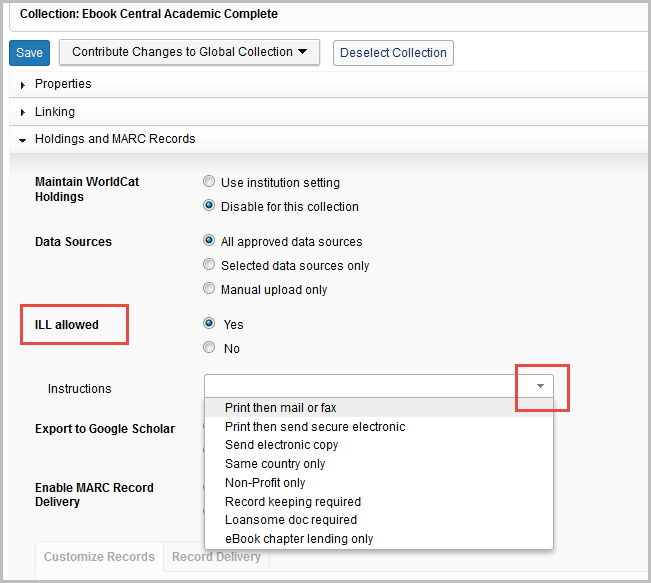
This feature is only visible to Collection Manager users without access to WorldShare License Manager.
Export to Google Scholar
See our Google Scholar page for information related to both institution and collection-level settings.
Enable MARC Record Delivery
The collection-level MARC record delivery options will not be available until you enable MARC record delivery in the institution settings.
- Use institution setting: Your institution settings will be displayed here
- Disable for this collection (default)
After you enable record delivery in the collection, you will see the following tabs of settings:
- Customize Records
- Record Delivery
Customize Records
Customize the information included in the output of MARC records for an individual collection.
Local Bibliographic Data
Leave the default setting or override institution settings for LBD. Settings:
- Use institution setting (default)
- Disable for this collection
當地館藏記錄
Leave the default setting or override institution settings for LHRs. Settings:
- Use institution setting (default)
- Disable for this collection
OCLC Symbols (for LHRs and local bibliographic data)
Leave the default setting or override the OCLC symbols you included at the institution level for LHRs and/or Local Bibliographic Data. Settings:
- Use institution setting (default)
- Use these OCLC symbols for LHRs and local bibliographic data
MARC Custom Text
If you mapped custom text to your records in the Customize Records tab, add collection-level text in the corresponding field(s).

If desired, use the Define Custom Text Labels button to change the text label from "Custom Text 1" to something more meaningful. See Collection Custom Text for more information.
Record Delivery
Delivery Frequency
Leave the default setting or override the institution setting for Delivery Frequency. Settings:
- Use institution setting (default)
- Specify delivery frequency for this collection. Settings:
- Daily (default)
- Weekly
- Monthly
- Quarterly
If the same item/OCLC number is in multiple collections and the collections are set to different delivery frequencies, you could get the same record multiple times.
Subsequent Record Output
Change the default setting if you want a complete set of records with every delivery. Settings:
- Include only records with changes (updated, added or deleted) after initial delivery (default)
- This setting is selected by default. After your first delivery of records, you will receive new, updated, and delete records that reflect changes to titles and collection data.
- Include a complete set of records with every delivery
- This setting is available for libraries that would like to receive both records with changes and records for titles that have not changed each time records are delivered.
- Records will be received in New, Updates, and Deletes files. Records for titles/OCLC numbers that have previously been delivered will appear in an Updates file with each delivery, even if there were no changes to the records. A separate file of new records will include titles added to collections that have not previously been delivered via WorldShare Collection Manager. Additionally, a separate file of deleted records may also be delivered for titles to which you no longer have access.
- Please see the Criteria for new, update, and delete records for additional information.
- Records will be received in New, Updates, and Deletes files. Records for titles/OCLC numbers that have previously been delivered will appear in an Updates file with each delivery, even if there were no changes to the records. A separate file of new records will include titles added to collections that have not previously been delivered via WorldShare Collection Manager. Additionally, a separate file of deleted records may also be delivered for titles to which you no longer have access.
- This setting is available for libraries that would like to receive both records with changes and records for titles that have not changed each time records are delivered.
Delivery File Output
Set delivery options based on a specified file name across one or multiple collections using the Record Delivery Templates dialog. Options include:
- Deliver records for this collection in the same file as other collections (default)
- All records for this collection will be output in the same files (New, Updates, and Deletes files) along with records from other collections.
- Deliver records for this collection in a separate file
The text following the Change button reflects the chosen option in the Record Delivery Template. Select the Change button to choose a different option.
Deliver records for this collection in a separate file
If you select Deliver records for this collection in a separate file, you will be able to specify a file name that already exists or enter a new file name in which to deliver records using the Record Delivery Template.
- Collection Manager will output the records from the collection in a separate file and include the file name you entered between the time stamp and the file extension. Example where [XXX] represents your library symbol:
- metacoll.[XXX].new.D20160214.T210512.[YourFileName].1.mrc
Note: If your library has a large number of file names, it will take some additional time for the template table to load.

Template options:
| 欄 | 說明 |
|---|---|
| File name |
Enter the file name for delivery. This can be shared between multiple collections.
You have the option to group records from more than one collection in the same file by selecting the same file name for each collection.
|
| Isolated |
Files with this selected will be isolated from other files in Collection Manager. There will be one file produced for all the collections that use the same file name. Titles in non-isolated files will include information from all collections using non-isolated files, regardless of the file name. By default, Isolated is not selected. Isolating the collection is beneficial if one of the following statements is true for you.
The option is available in knowledge base collections in Collection Manager and in query collections with ongoing delivery in Collection Manager. With this setting unselected:
|
| 格式 |
Users are now able to select a file format based on the file name. Previously, only one record type could be delivered across all file types. Users are now able to choose a format based on a set of collections under a specific file name. Options include:
|
| Collections | All collections with a specific file name will be listed in this column. Note, WorldCat Cataloging Partners will be delivered separately regardless of the specified file name and their settings will remain the same for file delivery. |
| Actions |
This column specifies whether or not the file name is in use. If it is not in use, there will be an option to delete the file name. The option to add a new file name also appears in this column, at the end of the collection list. Use the plus or minus option to add or delete a file name. |
Record Output
This setting acts as a filter to filter out from record delivery titles that you have set holdings on through some process outside of Collection Manager.
By default, you will receive a full set of records for the titles in the collection. Your initial batch of records will have a record for every title. The default setting is:
- Include records already held in WorldCat (default)
If you do not want records for items you already have holdings on in WorldCat, you can choose to have those titles withheld from record delivery. Change the setting to Do not include records already held in WorldCat and you will only receive records that do not already have your holding attached in WorldCat.
If you choose not to have records output for titles you already hold in WorldCat, we recommend that you change this setting back to "Include new records already held in WorldCat" after you receive your first delivery.
分享
See instructions on how to Share knowledge base collections with other libraries.
Titles
This accordion displays a list of titles within the collection that users have selected. To find the list of title-level settings, please see Title-level settings in knowledge base collections and/or the documentation on how to Modify a collection to select your subset of titles for more information.
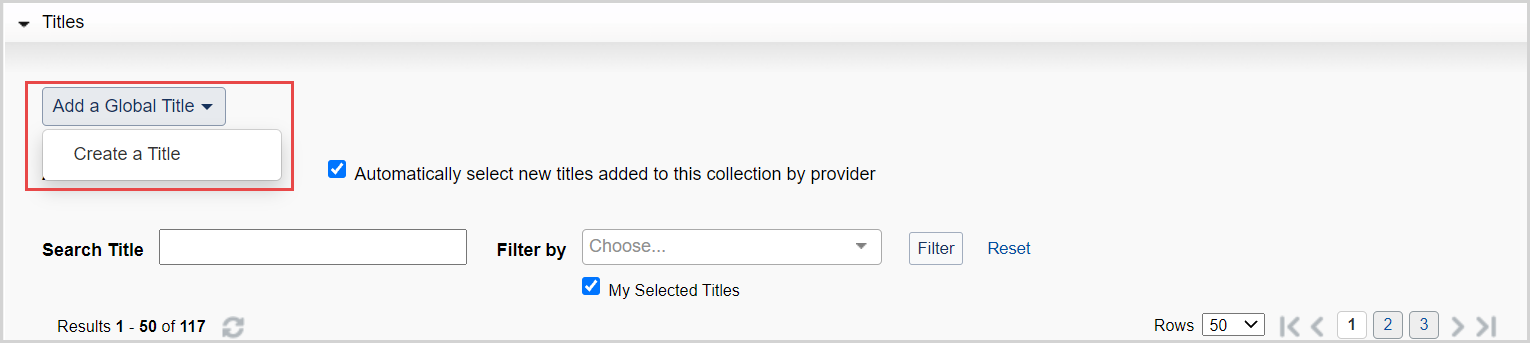
Add a Global Title
When viewing a global collection, use the Add a Global Title drop-down and select Create a Title to add a knowledge base title. See How to add a new title to an existing collection for more information.
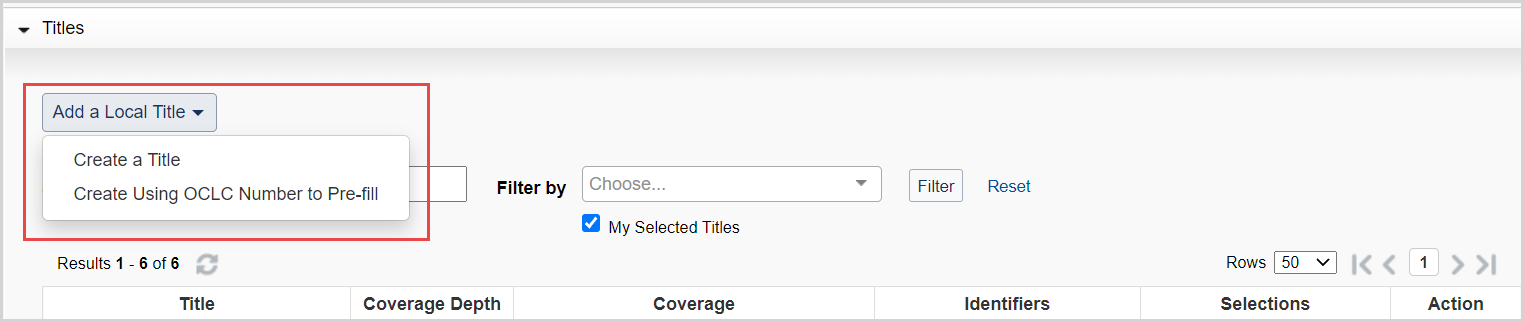
Add a Local Title
When viewing a local collection, use the Add a Local Title drop-down to select how you will add a knowledge base title to your local collection. Select either Create a Title or Create Using OCLC Number to Pre-fill.
Create a Title
Select this option to add new titles by manually typing in the information. To add title data manually:
- From the Add a Local Title drop-down list, select Create a TItle.
- Enter a Title Name.
- Select the Coverage Depth. Options include:
- Audio
- Ebook
- Image
- Journal - Abstracts
- Journal - Full Text
- Journal - Indexed
- Journal - Selected Full Text
- Journal - Print
- Video
- Other
- Enter required fields. The required fields differ depending on the Coverage Depth:
- If creating an e-resource collection, enter a Title URL that resolves to a homepage for each title
- If creating a print journal collection, select Journal – Print under Coverage Depth and then select Add Coverage under Coverage and enter coverage details for each title. See Coverage for details.
- Use the correct date format (YYYY-MM-DD). See KBART values and formatting for details
- Enter the appropriate Linking information. See Title level settings in knowledge base collections, Linking.
- 按一下 儲存 。
- Repeat the steps to add each title until you have added all of the titles for the collection.
Create Using OCLC Number to Pre-fill
Select this option to have the system fill in title data automatically if the OCLC number is available. To add a title automatically:
- From the Add a Local Title drop-down list, select Create Using OCLC Number to Pre-fill.
- Enter the OCLC number in the box that appears and click Continue. The system will find the WorldCat record and automatically fill in the available information such as:
- Title, OCLC number, Coverage Depth, and so forth
- We recommend that you check the Coverage Depth for accuracy.
- If needed, populate:
- Your coverage information
- Title URLs
Auto Select Titles
The Auto Select Titles setting in global knowledge base collections enables functionality to automatically select titles as they are added from OCLC data updates. You can enable or disable the setting regardless of whether you have selected a collection in full or have selected a subset of titles.
The default setting depends on if you selected all or a subset of titles in a collection:
- All titles in a collection are selected - Enabled by default
- A subset of titles in a collection are selected - Disabled by default
You can enable or disable the setting at any time. For example, if you have all titles in a collection selected except for a few that are regionally restricted, the setting will be disabled by default. Enable Auto Select Titles if you want newly added titles to be automatically selected. Enabling the setting will not change your current title selections. Rather, titles added in future data updates will be automatically selected.
Note: When a collection is being updated by an automated holdings feed, you should not select the option to Auto Select Titles in the Titles accordion of the collection's settings. Refer to Providers and contacts for Automatic Holdings Feeds for more information.
Collection History
The collection level history accumulates events from the Activity History that pertain to the active collection. Refer to Collection History in Knowledge base collections for more information.
Title History
The Title History accumulates events from the Activity History that pertain to title-level changes in addition to the title history view under each title. Refer to Title History in Knowledge base collections for more information.
Collection Actions
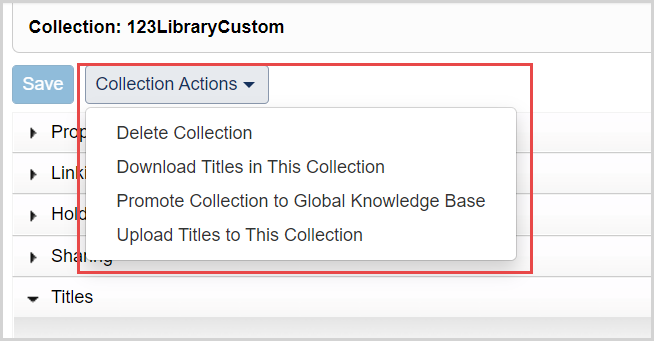
Both global and local collections have the option to Download Titles in This Collection and Upload Titles to This Collection. Local collections include the option to Delete Collection and Promote Collection to Global Knowledge Base whereas global collections allow you to Deselect Collection.
- Global Collection Actions- Image
-
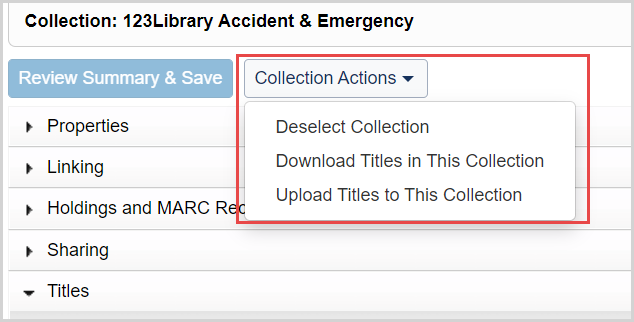
- Local Collection Actions- Image
-
Deselect Collection
For global Knowledge base collections, use the Collection Actions > Deselect Collection to deselect the collection from your knowledge base.
Delete Collection
For local Knowledge base collections, use the Collection Actions > Delete Collection to delete the collection from your knowledge base.
Promote Collection to Global Knowledge Base
For local Knowledge base collections, you have the option to promote the collection to the global knowledge base to be used by all other libraries. For more information, see Promote a collection to the global knowledge base.
Download Titles in This Collection
Expand the Collection Actions drop-list to select Download Titles in This Collection to download a KBART file.
選擇下載範圍
- 在下載館藏檔案方塊中,選擇您檔案的範圍:
- 館藏中的可用題名
如果您尚未選取館藏中的任何題名,則範圍「館藏中的可用題名」將是唯一顯示的選項。 如果您選擇「館藏中的可用題名」範圍,您的檔案將包含全球知識庫館藏中的完整題名資料,並可用於為您圖書館的當地館藏選取所需題名。- 如果您想要下載館藏中所有可用題名的題名資料,請選擇此選項。
- 我選定的題名
如果您已選取館藏中的題名,您將會看到範圍「我選定的題名」。 選取此範圍表示您的檔案將僅包含您所选和/或修改的題名。- 如果您要下載已選取題名子集的題名資料,請選擇此選項。
- 將產生 檔案。 檔案準備就緒時,會要求使用者返回館藏,並選取「在此處下載」連結。
- 如果您要下載已選取題名子集的題名資料,請選擇此選項。
- 館藏中的可用題名
- 按一下 下載 。
- 您下載的檔案將為 .txt 檔案。 若要編輯檔案,請在 Microsoft Excel 或對等的電子表格編輯應用程式中開啟。
開啟您的 .txt KBART 電子表格格式的檔案
開啟 .txt 您在電子表格編輯應用程式中從 WorldShare 介面下載的 檔案:
- 開啟 .txt 在記事本或文字編輯中使用 檔案。
- 導覽到編輯 > 全選,然後復制整個選取項目。
- 開啟 Office、Microsoft Excel 或您偏好的電子表格編輯應用程式。
- 按一下電子表格的第一個單元格,然後按一下右鍵並貼上。 .txt 的內容 文件將以 KBART 格式填充電子表格。
- 有時,索引標籤分隔的文字檔案在開啟時遭到損毀。 檢查以確定欄位未重新格式化,並視需要更正格式。 例如,以下列可能需要更正的頻率更高:
- 日期欄
- ISSN或ISBN (print_identifier)
- eISSN 或 eISBN (online_identifier)
- OCLC Entry ID (oclc_entry_id)
警告 :如果您想要從非常大的館藏 (例如 HathTrust 館藏或 Internet Archive 館藏) 下載題名,它將下載您的題名。請參閱下載 Internet 歸檔和 HathiTrust 館藏以及我選定的題名 (KBART) 的大檔案,以取得更多資訊。
儲存您的檔案
在將檔案上傳到 WorldShare 介面之前,請將電子表格儲存為文字 (製表符分隔) (.txt)。
注意:如果檔案包含變音符號 (包括非拉丁/非羅馬字元),請將其儲存為 Unicode 文字 (.txt)。當您在 WorldShare 界面中上傳檔案時,請使用檔案編碼下拉式清單,將預設選項變更為 UTF-16LE (Unicode 文字/Excel) 。
Upload Titles to This Collection
Expand the Collection Actions drop-list to select Upload Titles to this Collection to upload a KBART file.
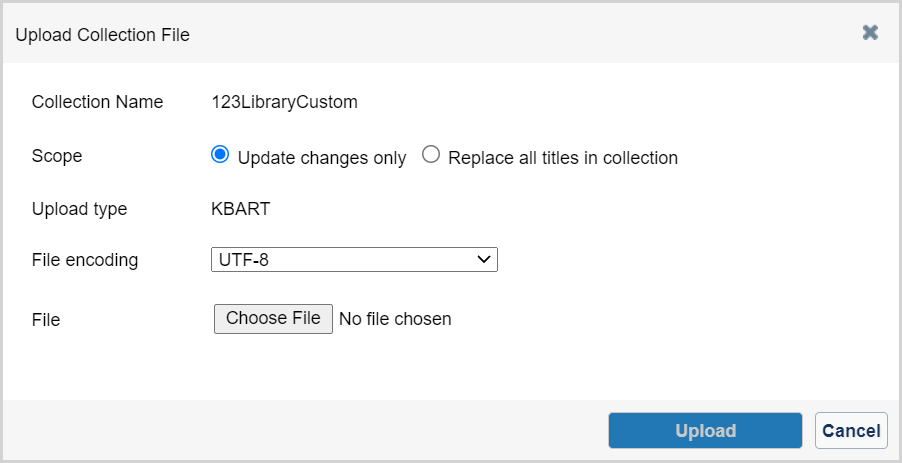
Choose an upload Scope
- 在上傳館藏檔案方塊中,選擇您檔案的範圍:
- 僅更新變更 (預設)
選取「僅更新變更」會導致系統僅在檔案中尋找變更,並使用指定的 ACTION 值來決定如何處理變更。 在下列情況下選取此選項:- 您是首次建立館藏
- 您已變更題名資料並正在使用「overlay」或「covoverlay」ACTION值
- 取代 中的所有題名 collection
選擇「取代館藏中的所有題名」會導致系統刪除或取消選取館藏中任何現有的題名選擇,並將其取代為您正在上傳的新檔案中的資訊。 在下列情況下選取此選項:- 您正在使用檔案來刪除或取消選取館藏中的題名
- 僅更新變更 (預設)
- 選擇上傳檔案編碼
- 保留預設的檔案編碼 UTF-8,除非您需要變更。如果您的館藏資料包含非拉丁/非羅馬字元,請使用「檔案編碼」下拉式清單,將預設選項變更為 UTF-16LE (Unicode 文字/Excel)。
有下列可用選項:- UTF-8
- ISO-88591 (LATIN-1)
- UTF-16LE (Unicode 文字/Excel)
- 保留預設的檔案編碼 UTF-8,除非您需要變更。如果您的館藏資料包含非拉丁/非羅馬字元,請使用「檔案編碼」下拉式清單,將預設選項變更為 UTF-16LE (Unicode 文字/Excel)。
- 瀏覽並選取您的 .txt 檔案,然後按一下「上傳」。
- 上傳完成處理後,請預覽報告並決定是核准 KBART 上傳,還是捨棄並重新開始。
- 上傳預覽將自產生日期起保留 72 小時。
- The collection will then be locked for re-indexing until your changes have had time to process.
Excel 檔案 (.xls) 與 (.xlsx) 無法正確上傳。您的檔案應儲存為 (.txt) 製表符分隔的文字檔案、Unicode Text .txt。